



Managing corporate identities is often a key responsibility of IT departments. Every organization is unique, and the way you manage identities is unique too.
One of the initial decisions we must make when starting to use Google Cloud is... how to manage identities? How and who will have access to the cloud services?
In this article I will give you some recommendations on how to manage identities following best practices recommended by Google Cloud.
Key Concepts
Cloud Identity
This platform allows us to centrally manage users and groups that can access Google Cloud services and/or Google Workspace services. It can also be used as an Identity Provider (IdP) for third-party applications (supporting SAML and LDAP applications).
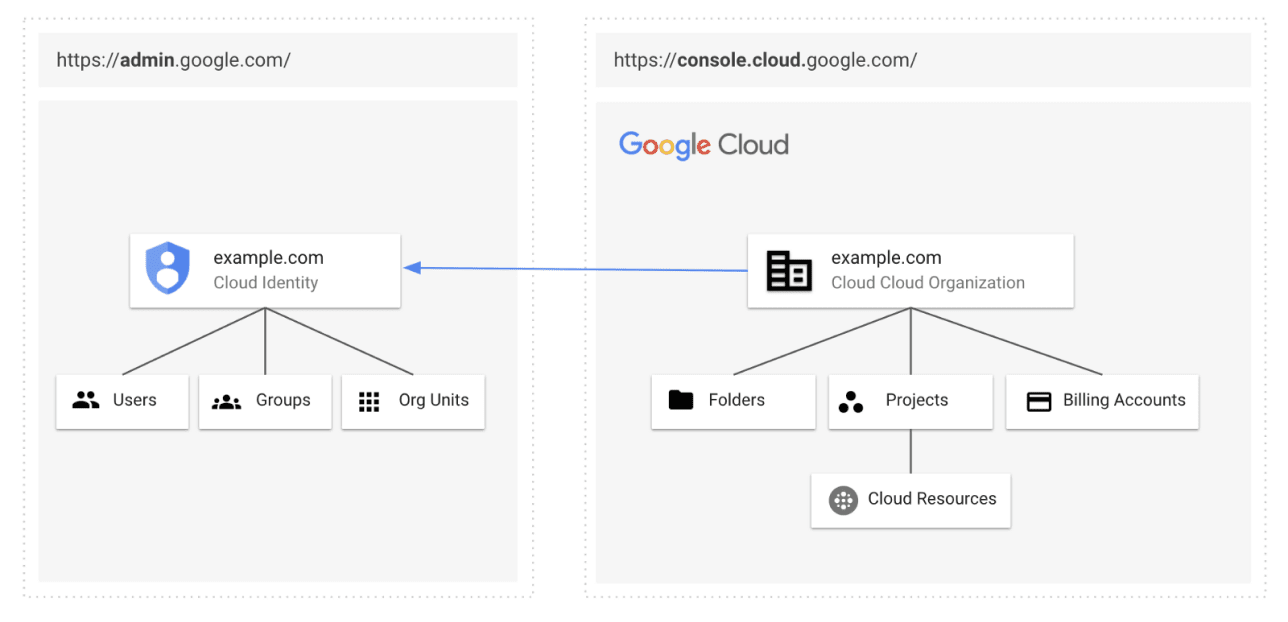
Cloud Identity & Google Cloud
It offers fifty free user licenses, and you can request more if needed.
Cloud Identity accounts are key to authenticating corporate users and managing access to Google Cloud resources.
Cloud Identity has various functionalities; however, the most relevant ones in relation to Google Cloud are:
• User lifecycle management: Create or import user accounts into a cloud-based directory. Provision and deprovision as users join the organization, change roles, and leave. Manage everything from one easy-to-use application.
• Account security: Protect user accounts with two-step verification methods, such as push notifications and one-time passwords (OTPs). Reinforce the use of phishing-resistant security keys for high-value users and applications.
• Single sign-on
Authentication, Authorization, and Auditing
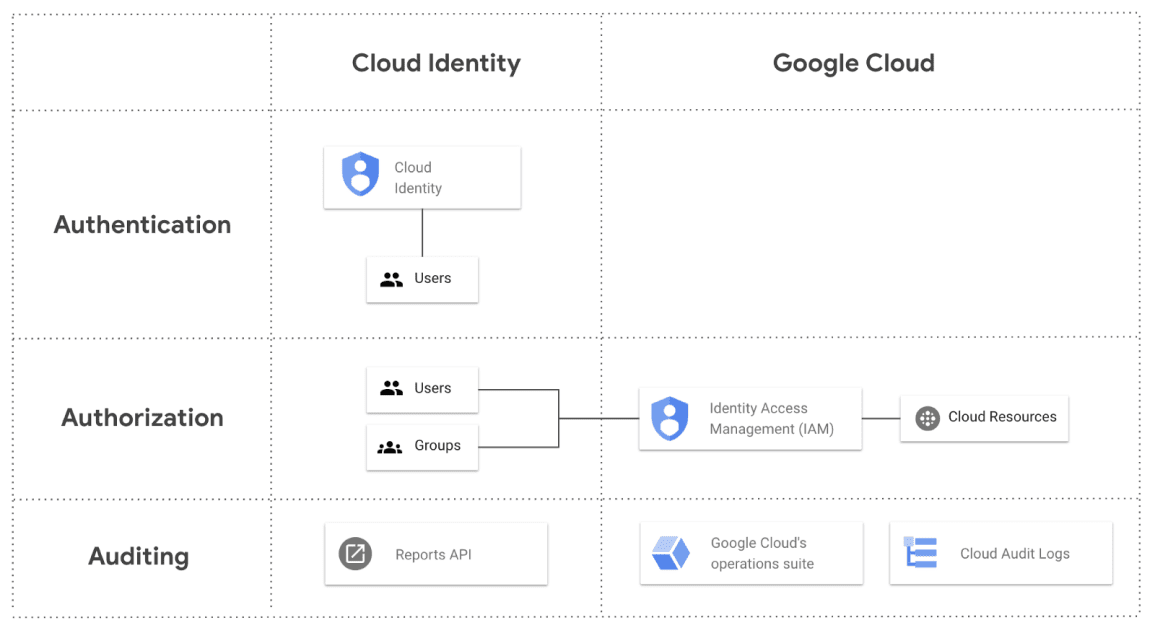
Authentication: User identification is typically done through a process where the user provides a private form of verification (e.g., password, key, etc.). We use Cloud Identity.
Authorization: a set of permissions assigned to a user after authentication. A user can authenticate (thus confirming their identity), but authentication alone does not provide any permissions. We use IAM for AuthZ (and Cloud Identity to assign administrator roles).
Auditing: a way to monitor resources accessed or modified by a particular identity. We use Google Cloud Operations (formerly known as Stackdriver), Cloud Audit Logs for auditing in Google Cloud, and the Reports API for auditing Cloud Identity operations.
Best practices
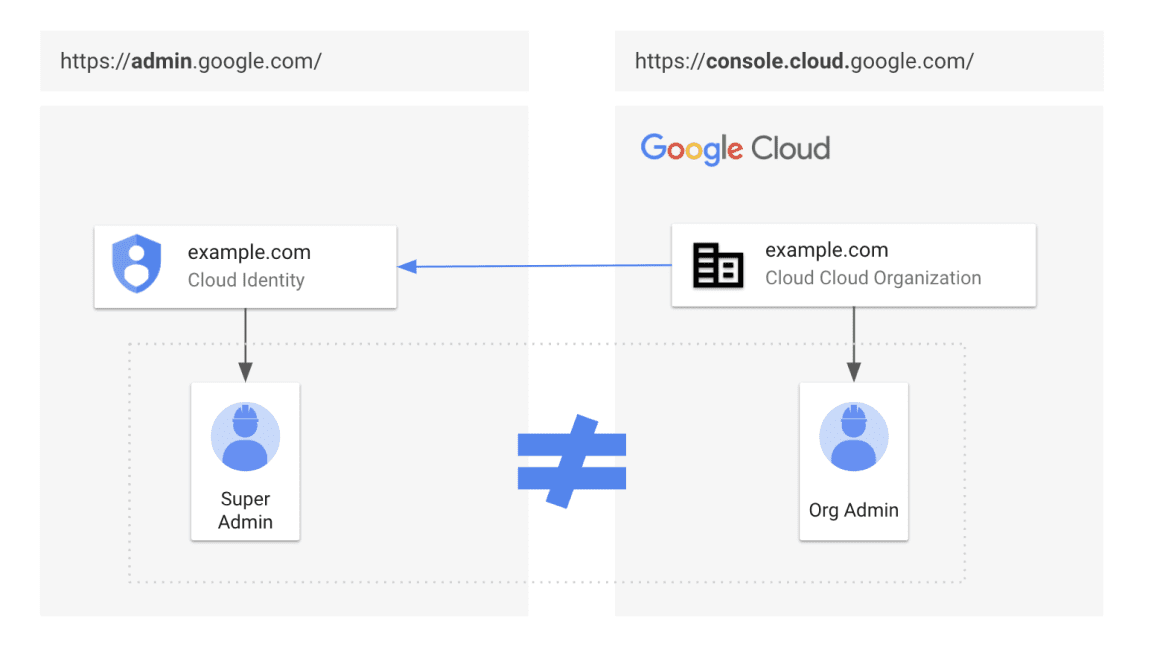
Differentiate the administration of Cloud Identity and Google Cloud
Protecting administrator accounts is fundamental to the security of the organization. One of the best security practices is to have one administrator account for Cloud Identity (Super Admin) and a different one for Google Cloud (Org Admin), because they have different responsibilities.
Protect your Super Admin account in Cloud Identity
Create a new email address that is not specific to a particular user, such as the Super Admin account in Cloud Identity. This account should be further secured with multi-factor authentication and can be used as an emergency recovery tool.
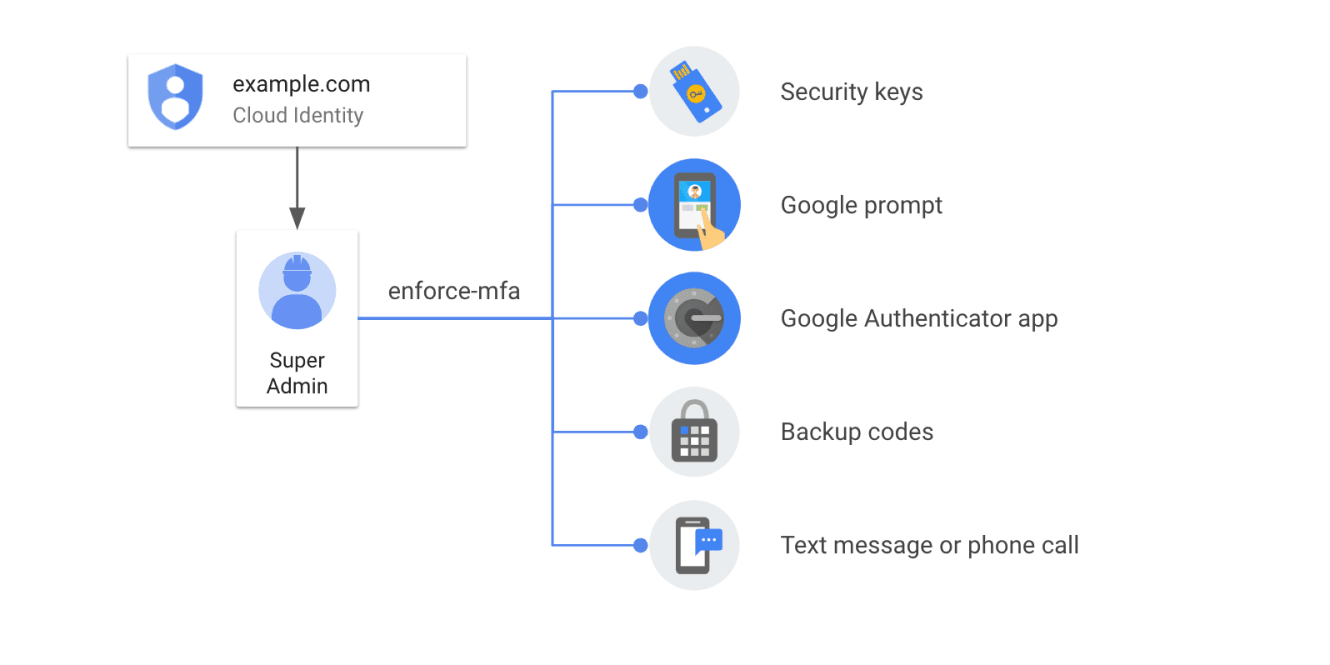
Multi-factor authentication (MFA) in Cloud Identity
Configure more than one account as Super Admin
It is recommended to have more than one Super Admin account, each managed by a separate person (avoid sharing an admin account). If one account is lost or compromised, another Super Admin can perform critical tasks while the other account is being recovered.
Do not use the Super Admin account for daily activities
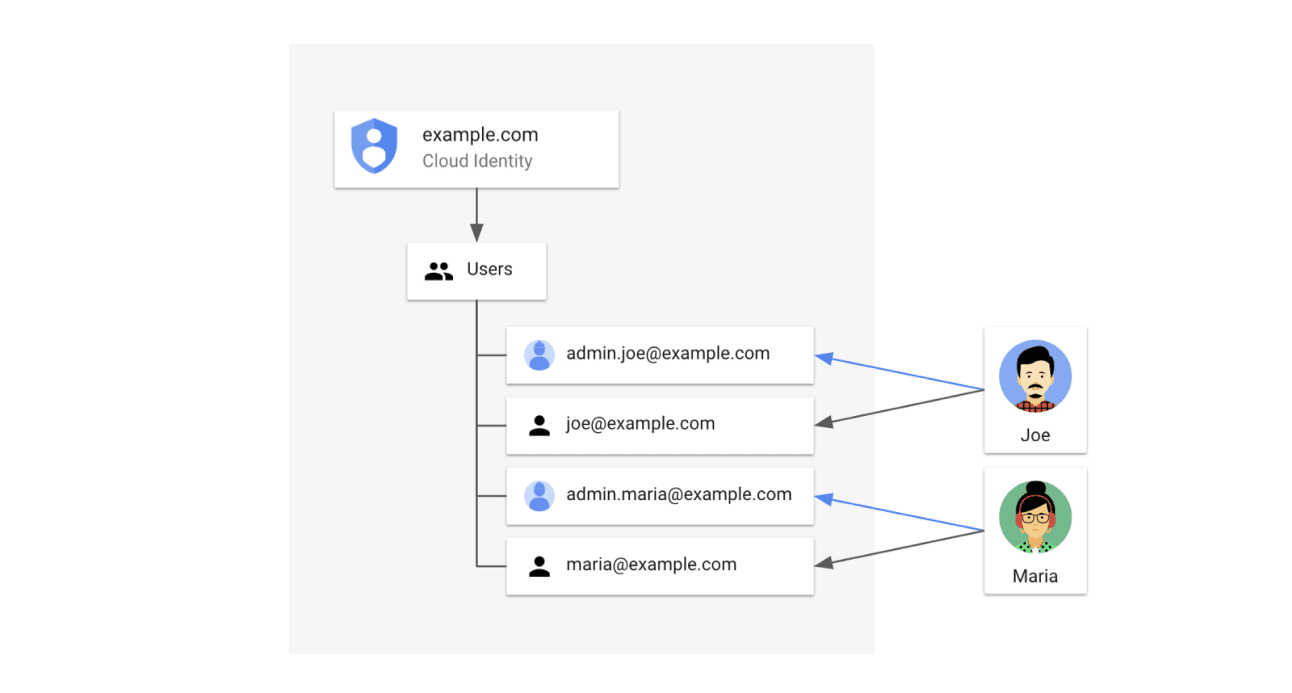
Assign each Super Admin two accounts: their own Super Admin account and a separate account for daily activities. Users should only log in to a Super Admin account to perform specific tasks, such as setting up two-step verification (2SV), managing billing and user licenses, or helping another administrator recover their account. Super Admins should use a separate, non-admin account for daily activities. For example, if Maria and Joe are Super Admins, each should have an identifiable administrator account and a user account, as follows:
admin.maria@example.com, maria@example.com
admin.joe@example.com, joe@example.com
Continuous Integration and Continuous Delivery (CI/CD) Pipeline in Google Cloud
Create groups to manage user access in Google Cloud
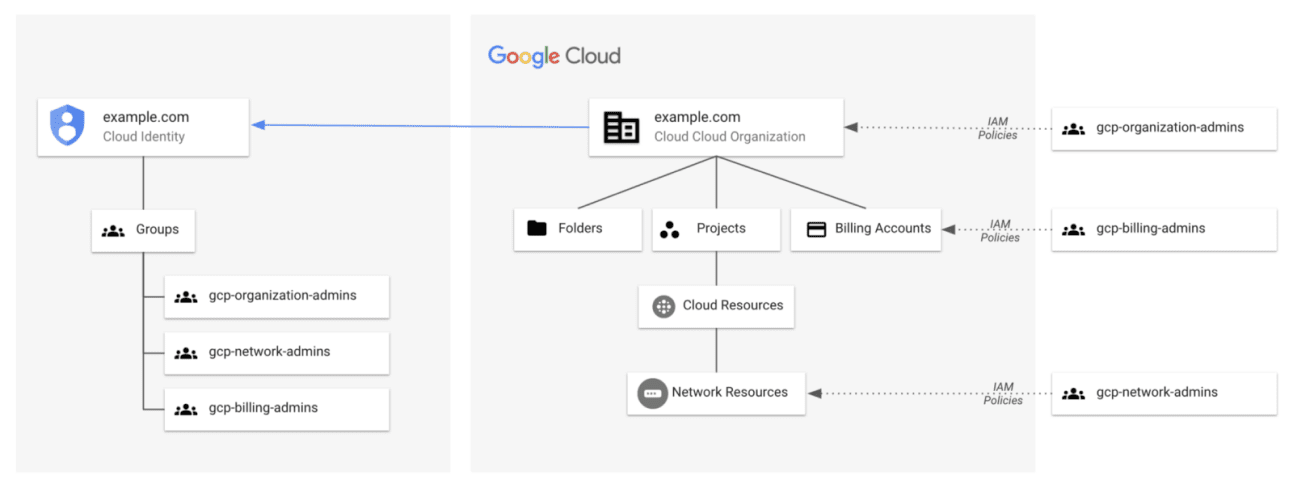
Assign permissions to user groups based on their roles using Google Groups to organize your users. Adding specific permissions to individual user accounts is not recommended due to their potential for user mobility. Using administrative groups reduces the operational burden of granting administrative policies.
The following groups are common in organizations that have multiple departments managing their cloud infrastructure.
• gcp-organization-admins: Manage any resource belonging to the organization. Organization administrators have access to all your Google Cloud resources.
• gcp-network-admins: Create networks, subnets, firewall rules, and network devices such as Cloud Router, Cloud VPN, and cloud load balancers
• gcp-billing-admins: Configure billing accounts and monitor their usage.
Automate user lifecycle management
For example, if your organization uses an Identity as a Service Provider (IDaaS), such as ForgeRock, Okta, or Ping Identity, you can configure federation to avoid duplication of processes associated with the user lifecycle.
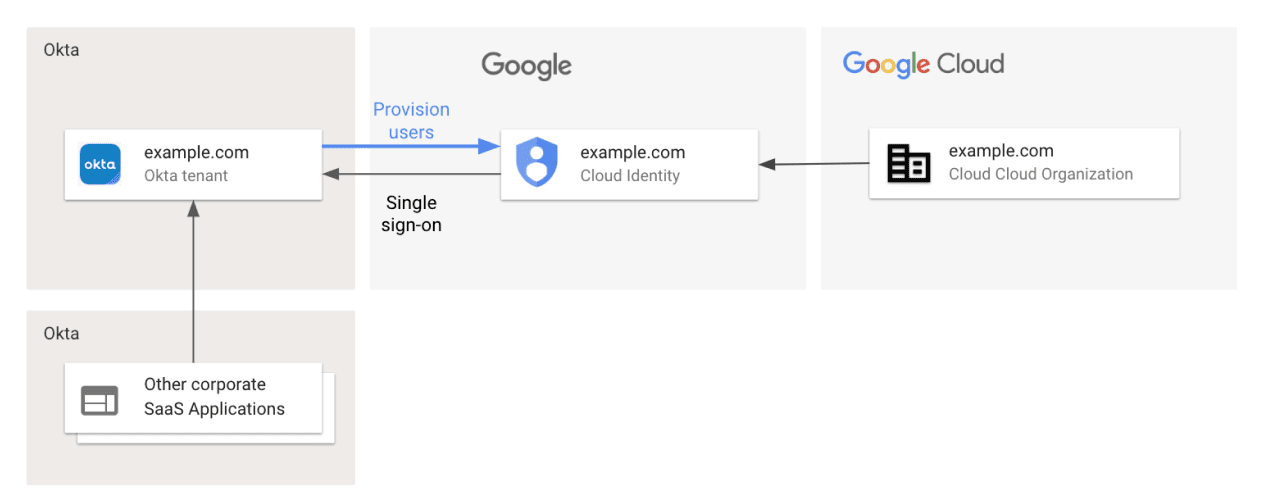
Cloud Identity uses your IDaaS as an IdP for single sign-on. You enable a single sign-on experience for your organization that extends across Google services and other applications integrated with your IDaaS.
• IDaaS automatically provisions users and groups for Cloud Identity or Google Workspace. You don't need to sync passwords or other credentials with Google.
• Existing enterprise applications and other SaaS services can continue with your IDaaS as IdP.
Secure the external IdP when using single sign-on
Cloud Identity lets you configure single sign-on with your external IdP, such as Active Directory, Azure Active Directory, or Okta (to name a few). If single sign-on is enabled, Cloud Identity trusts the external IdP to authenticate users on behalf of Google.
Enabling single sign-on has several advantages:
• Users can use existing credentials to access Google services.
• Users do not need to re-enter their password if they are already logged in.
• You can apply consistent multi-factor authentication policies across all Google apps and services.
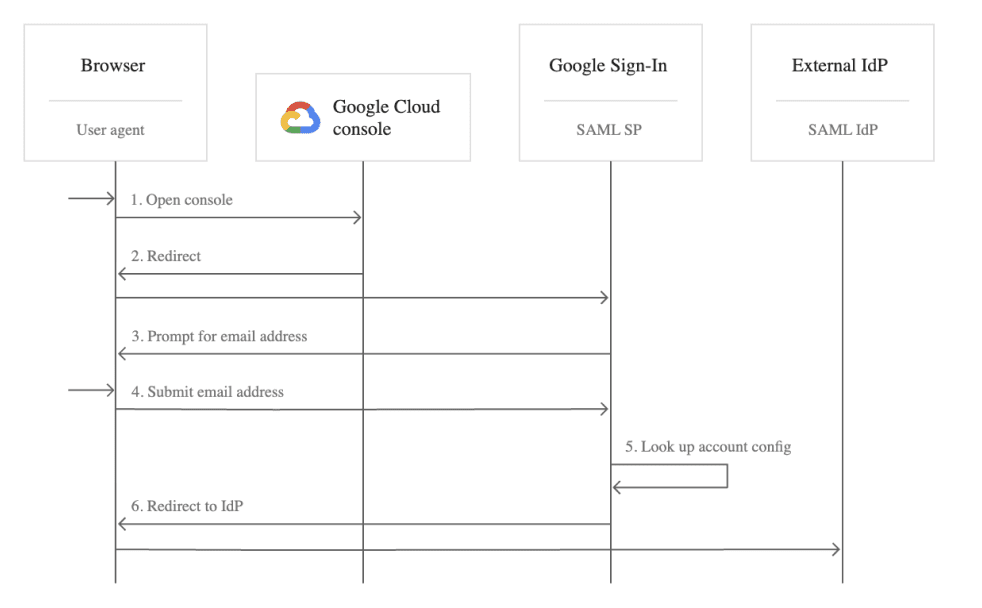
If single sign-on is enabled, the overall security and integrity of the Google implementation depends on the security and integrity of the IdP.
To prevent single sign-on from becoming a weak link in your security posture, ensure that the IdP and all systems it depends on are securely configured:
• Limit the number of users with administrator access to the IdP or any of the systems on which the provider depends.
• Do not grant administrator access to these systems to any user you would not give advanced administrator privileges to in Cloud Identity or G Suite.
• Do not use single sign-on if you are unsure of the security controls that were implemented for the external IdP.
Make sure you receive important admin announcements.
If you don't frequently sign in with your primary administrator account, you might miss important announcements about required Google services. To ensure you receive these announcements, set up a secondary email contact to send them to an account you use regularly.
Send account and billing notifications to another administrator
Do not remain logged into a Super Admin account
Staying logged into a Super Admin account when not performing specific administrative tasks can increase vulnerability to phishing attacks. Super Admins should log in only when necessary to perform specific tasks and then log out.
Use the least privilege approach
Use the Super Admin account only when necessary and delegate administrator tasks to user accounts with limited administrator roles. Employ the principle of least privilege, where each user has access to only the resources and tools necessary for their typical tasks. For example, you could grant administrator permissions to create user accounts and reset passwords, but not allow them to delete user accounts.
Monitor Super admin activity via email alerts
Monitor administrator activity and track potential security risks by setting up administrator email alerts for certain events, such as suspicious login attempts, compromised mobile devices, or changes made by another administrator.
When you set up an alert for an activity, you receive an email every time that activity occurs.
View and edit system-defined rules
Review the administrator's audit log
Use the admin audit log to see a history of every task performed in the Google Admin console, which admin performed the task, the date, and the IP address where the admin logged in.
The Super Admin activity appears in the Event Description column as _SEED_ADMIN_ROLE, followed by the username.
Administrator audit log
Export audit logs to BigQuery
Cloud Identity maintains several audit logs to track configuration changes and other activities that may be relevant to the security of your Cloud Identity account. In most audit logs, data is retained for 6 months.
To limit the risk of unauthorized access to audit logs, use a dedicated Google Cloud project for your BigQuery dataset. To protect audit data from manipulation or deletion, grant access to the project and the BigQuery dataset with the lowest privileges.
Add recovery options to administrator accounts
Super Admins must add recovery options to their administrator account.
If a Super Admin has forgotten their password, they can click "Need help?" on the login page and Google will send them a new password via phone, text message, or email. To do this, Google needs a phone number and a recovery email address for the account.
Add account recovery information to your administrator account
Keep the password reset information handy
If a Super Admin cannot reset your password using the email or phone recovery options, and another Super Admin is unavailable to reset the password, you can use the recovery wizard.
To verify identity, Google asks questions about the organization's account:
• The date the account was created.
• Original secondary email address associated with the account (email used to register).
• Google order number associated with the account (if applicable).
• Number of user accounts created.
• Billing address linked to the account.
• Type of credit card used and its last 4 digits.
Google also asks the administrator to verify the domain's DNS ownership, so they must have the credentials to edit the domain's DNS settings with their registrar.
Recovering administrator access to your account
Register a spare security key
Super Admins must register more than one security key for their administrator account and store them in a safe place. If their primary security key is lost or stolen, they can still log in to their account.
Use a security key for 2-Step Verification
Now you know how to properly and securely manage identities in the cloud; if you have any questions, we invite you to talk to us. Remember that at Zenta we are Google Cloud partners and we are ready to advise you at any time.